Support is easier when it starts with the computer record rather than a separate search for its address. Admin Desk connects device inventory to remote desktop, consoles, software installation and prepared automation. Available actions depend on the OS, configured components, network reachability and the operator's permissions.
Remote desktop
Admin Desk Remote provides browser-based access, monitor selection, a text clipboard and a chat with the user. Confirmation requirements and permitted capabilities are controlled by client settings. Image modes and adaptive transmission support different connection conditions.
The control connection uses the Admin Desk server, while screen transmission uses WebRTC with TURN relay support. This enables internet access without publishing each PC's local remote-desktop port, but requires a correctly configured server, HTTPS, WebSocket and network rules.
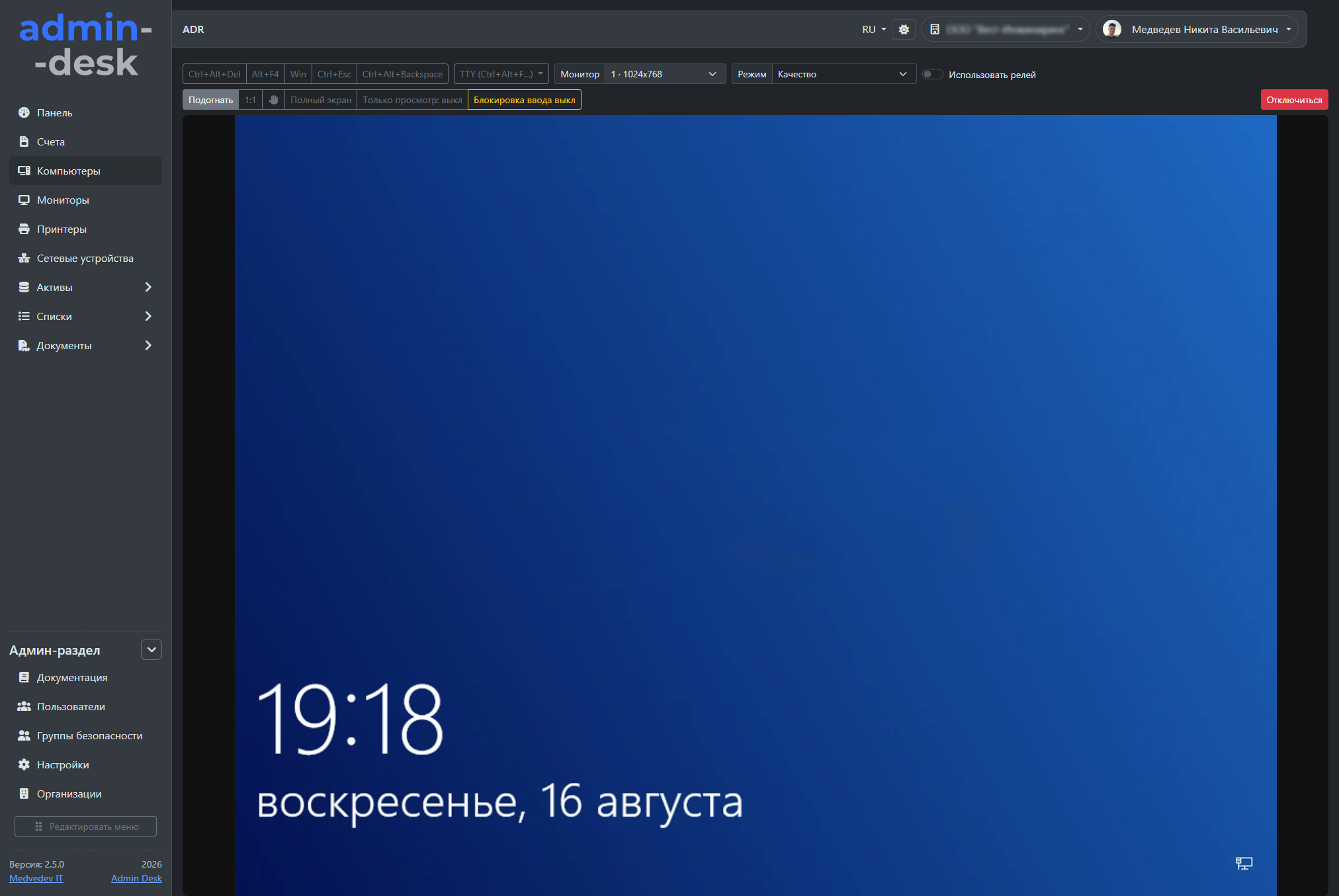
Several connection options
Admin Desk also integrates with VNC and RustDesk. Buttons appear when the method is enabled and the required information is available. For RustDesk, the agent obtains the installed client's ID and supplies it to the computer record.
ADR on Linux requires an active X11/Xorg graphical session. This remote-desktop option does not support Wayland, headless console servers or macOS. An SSH terminal is a separate administration method and should not be confused with screen capture.
Consoles and background actions
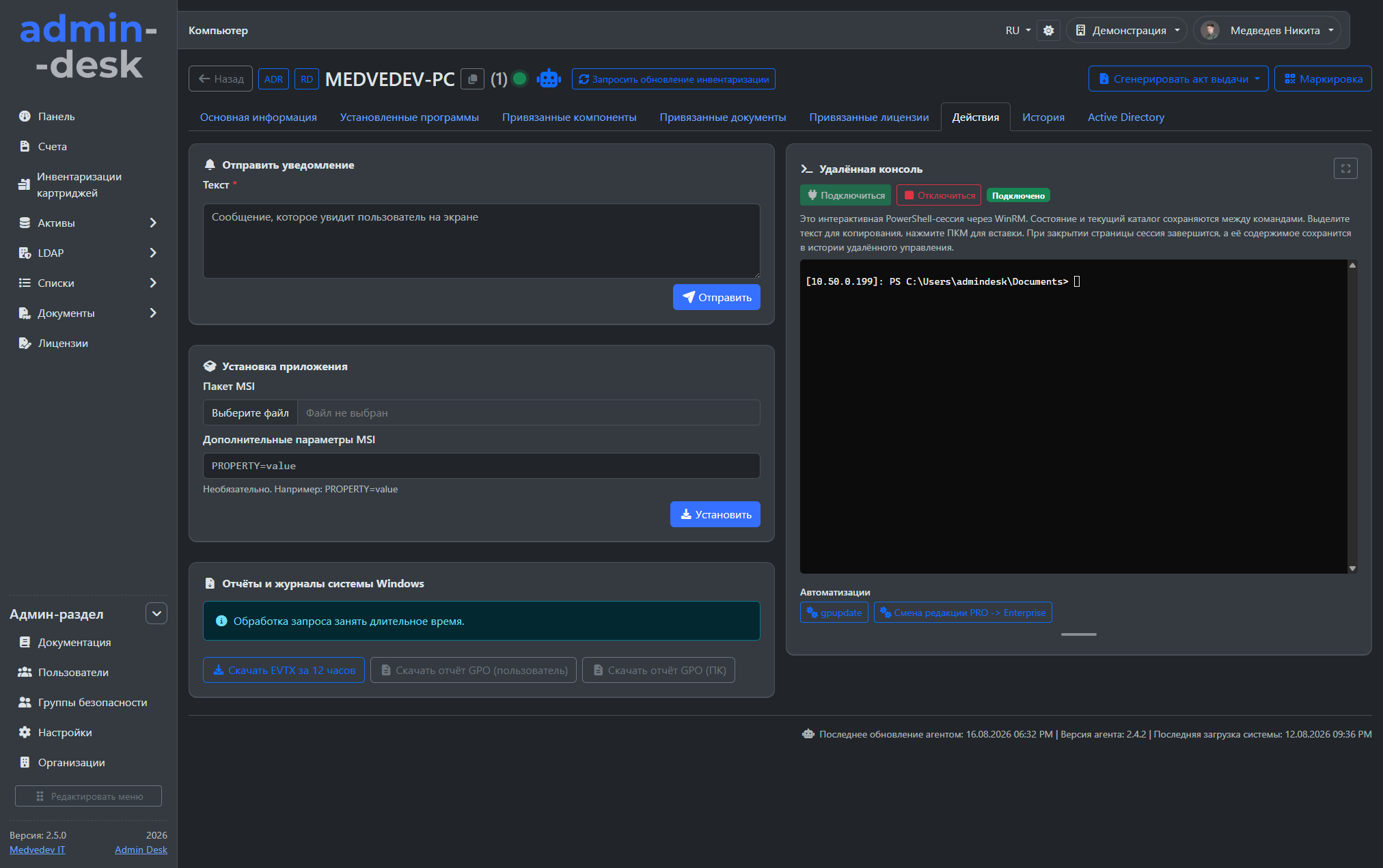
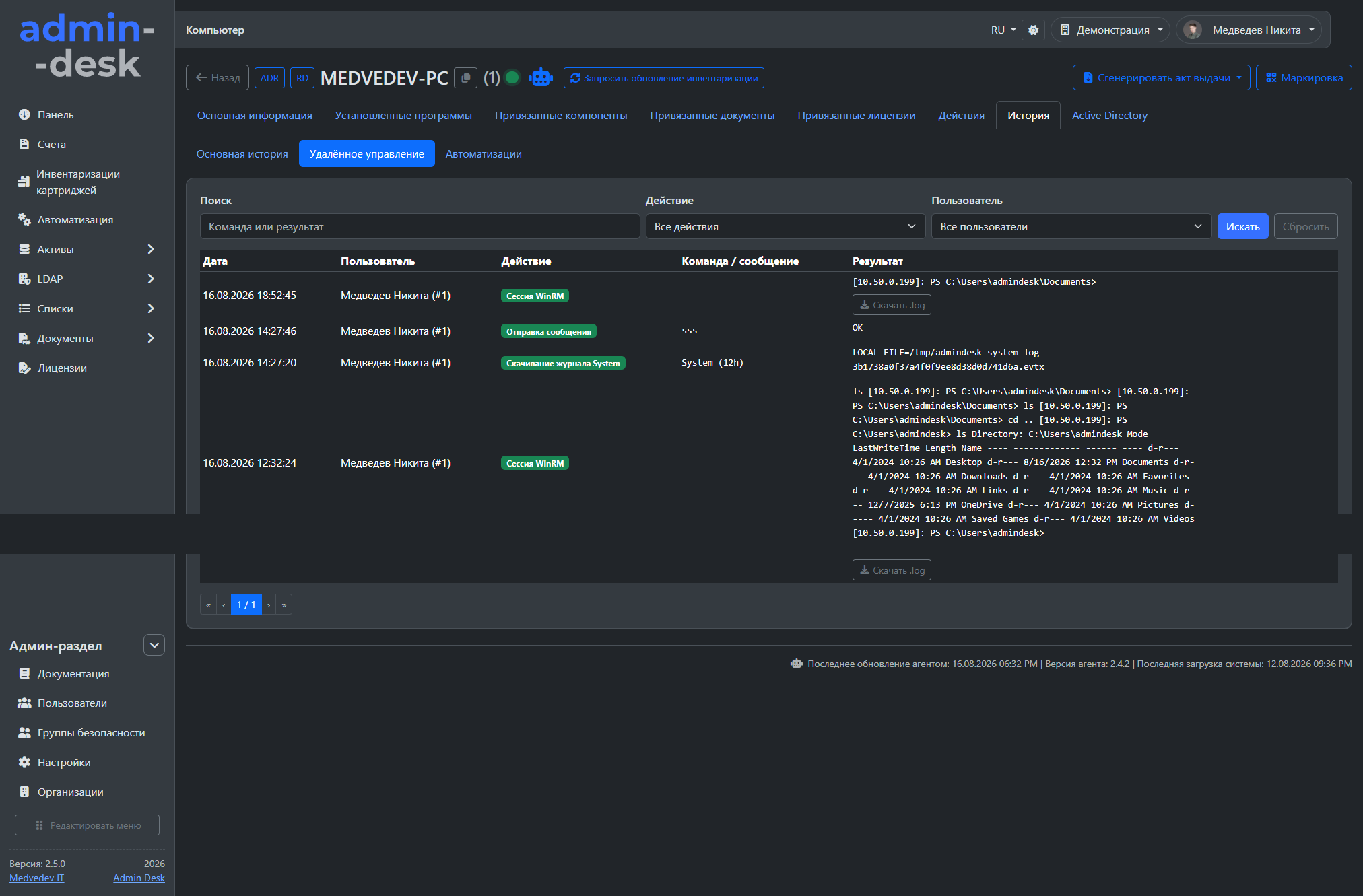
Windows management includes an interactive PowerShell console over WinRM, background MSI installation, notifications and diagnostic exports such as event logs and Group Policy information. Linux and macOS can use an interactive SSH terminal with a server key when SSH is enabled and the agent confirms the service and port.
Direct administrative actions need their own network reachability. A successful ADR internet connection does not automatically make WinRM or SSH accessible to the server. The Windows agent can optionally prepare a local account and WinRM; otherwise the configured domain credentials are used where applicable.
Personal and shared scripts
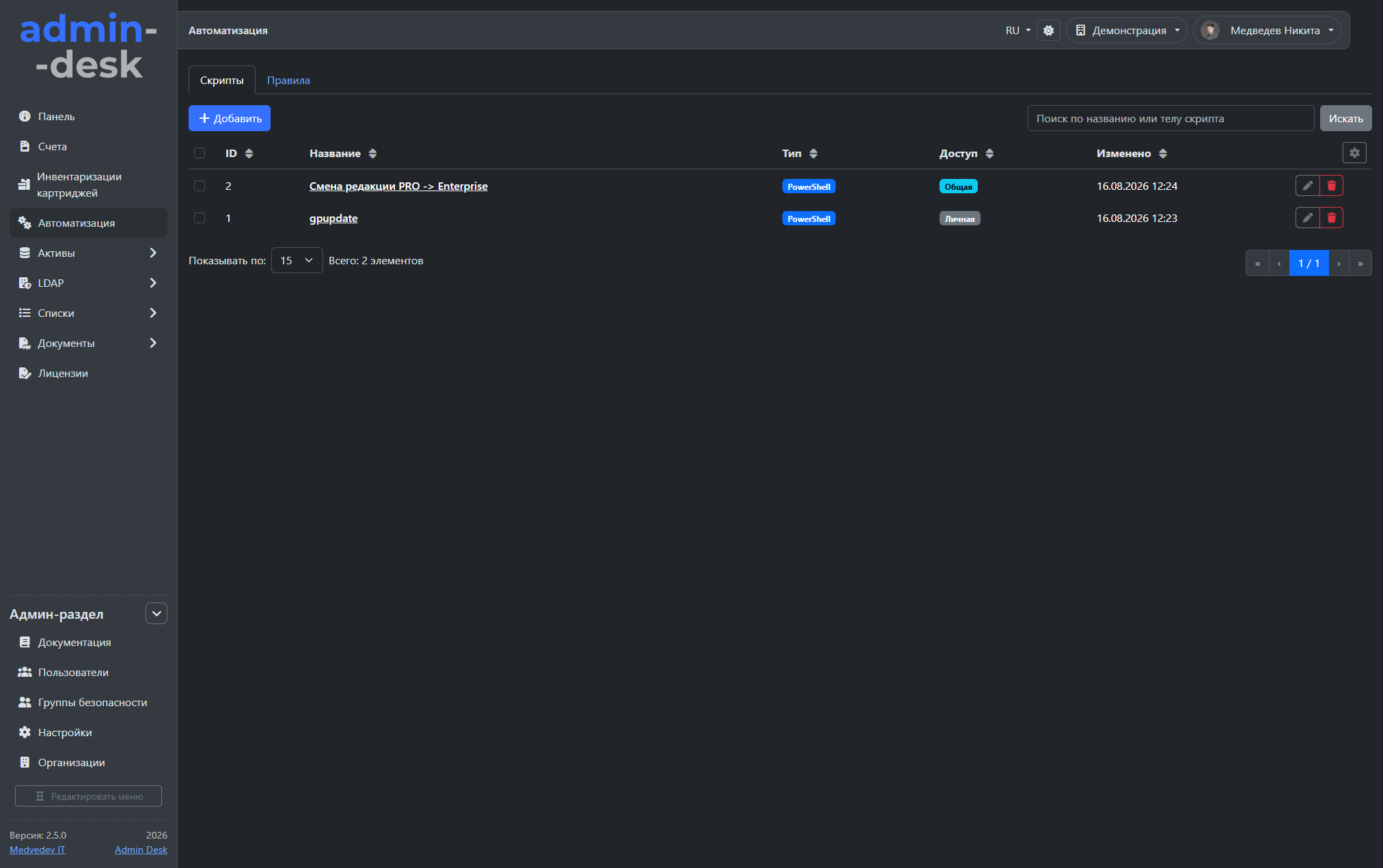
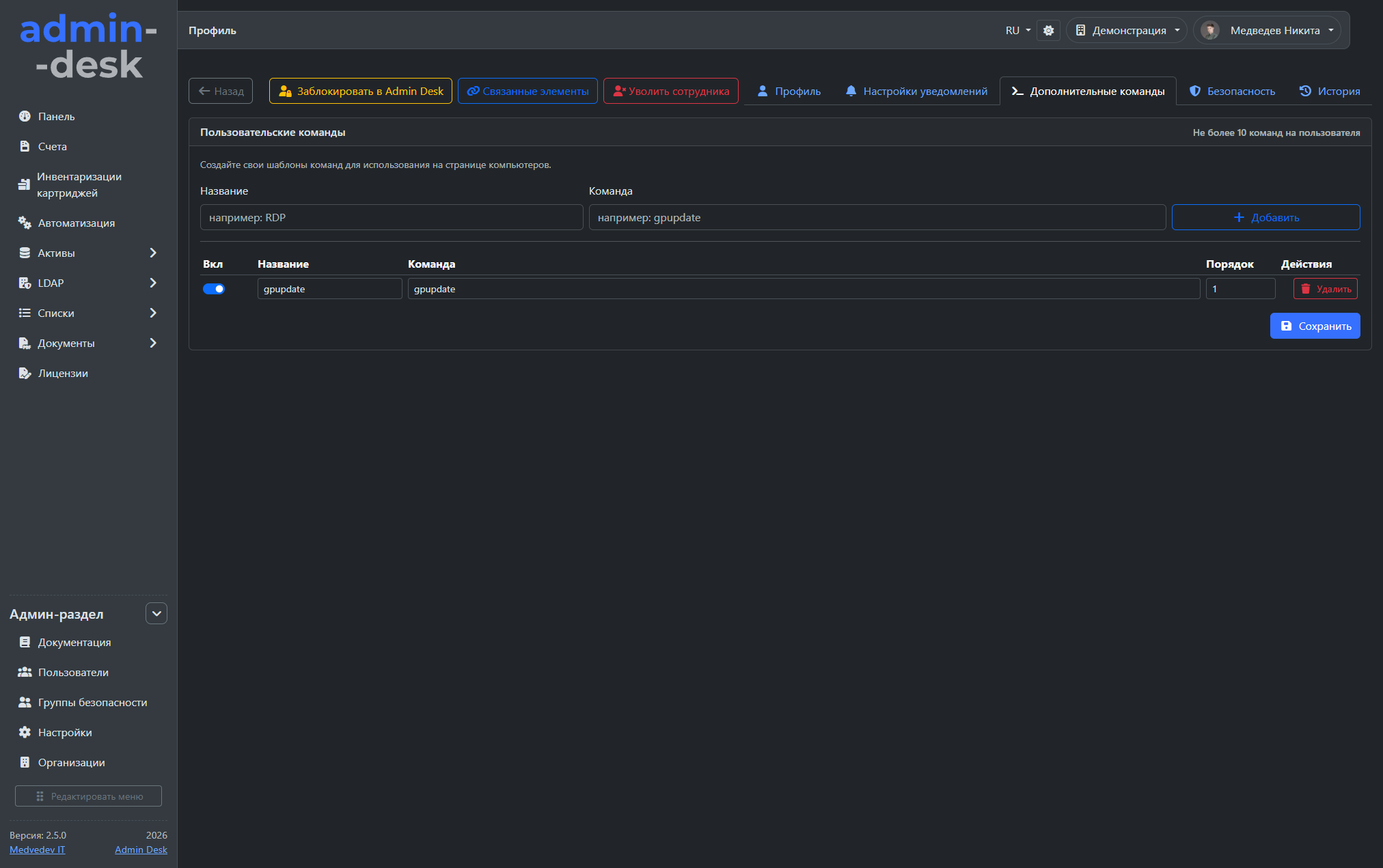
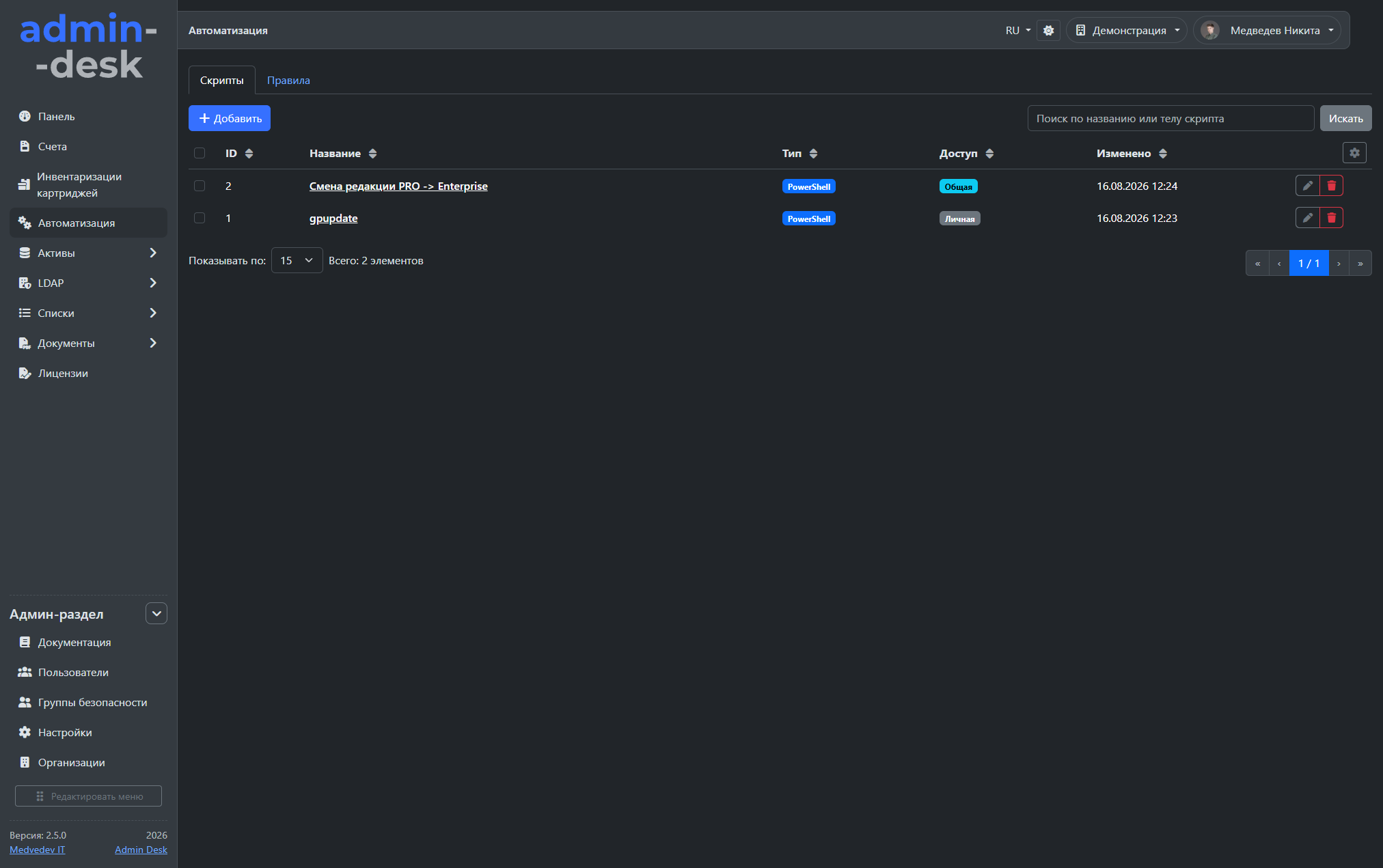
The automation section stores PowerShell and Bash scripts. Personal scripts suit an engineer's own tools, while shared scripts standardize repeated team operations. A prepared script can be launched from an appropriate computer record or included in a rule.
For example, the team can prepare standard diagnostics, application maintenance or actions associated with onboarding and offboarding. Permissions control access to automation, and execution uses configured WinRM or SSH.
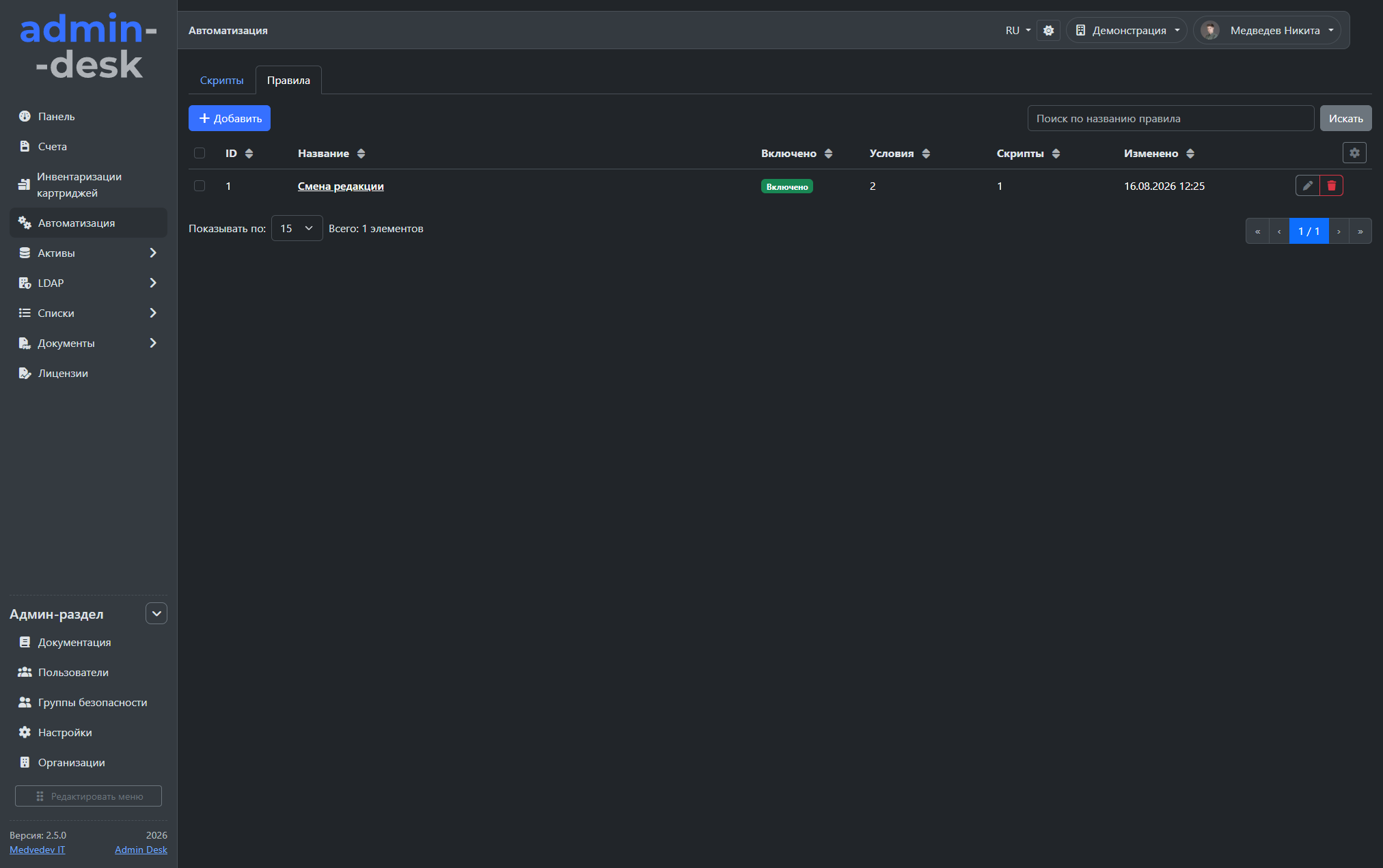
Rules, conditions and execution order
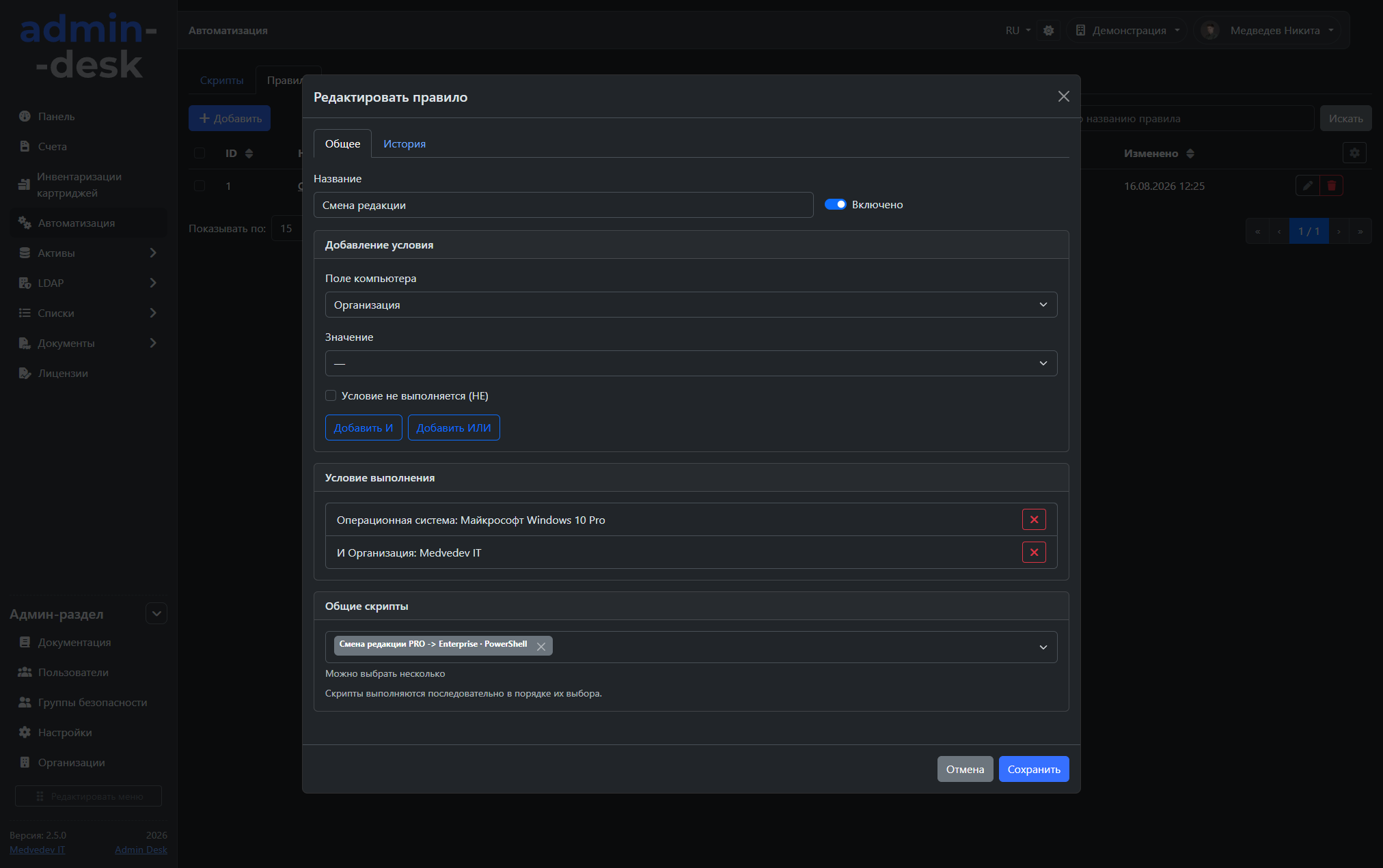
Rules can be triggered by computer inventory, employee onboarding or offboarding. Inventory rules evaluate conditions against the reporting device. An execution table identifies target computers and sequences of shared scripts; its rows run in the specified order.
The target can be the reporting PC or a selected machine. A minimum interval limits repeated execution per target computer. In multi-organization mode, the target's organization is retained, preventing identical internal IDs in different databases from being confused.
Audit and outcomes
Remote-management history records the operator, time, action, commands and results. Successful ADR and VNC connections are recorded after the connection is actually established, and ADR chat messages are included in history. Execution logs help determine the outcome of automation, while diagnostic logs support investigation of network failures.
Linking the computer to an ITSM ticket retains the reason for the connection, the discussion and the accepted outcome alongside technical activity.