An IT team supporting several companies needs shared tools without mixing their operational records. Admin Desk's multi-organization mode provides one installation with separate working databases, permissions and organization settings.
One interface with a clear working context
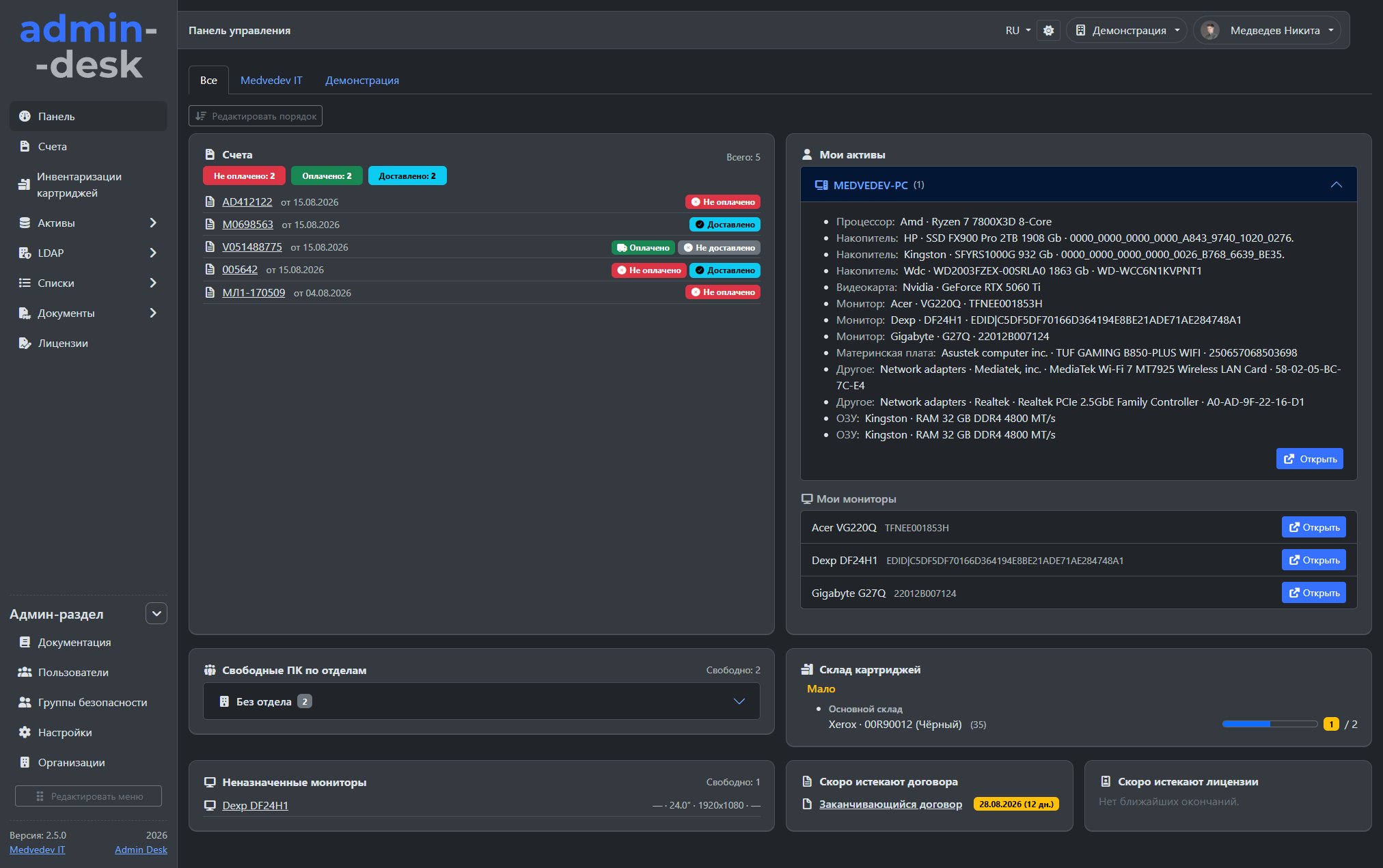
The top navigation selects the organization currently being managed. Working URLs use its short code, and the last selection is remembered in the browser. Users see only organizations to which they have access.
The dashboard offers a combined overview and individual organization views. Tickets and projects have their own organization tabs, including All, so authorized work across several companies can be monitored without repeatedly switching the entire interface.
Separate and shared data
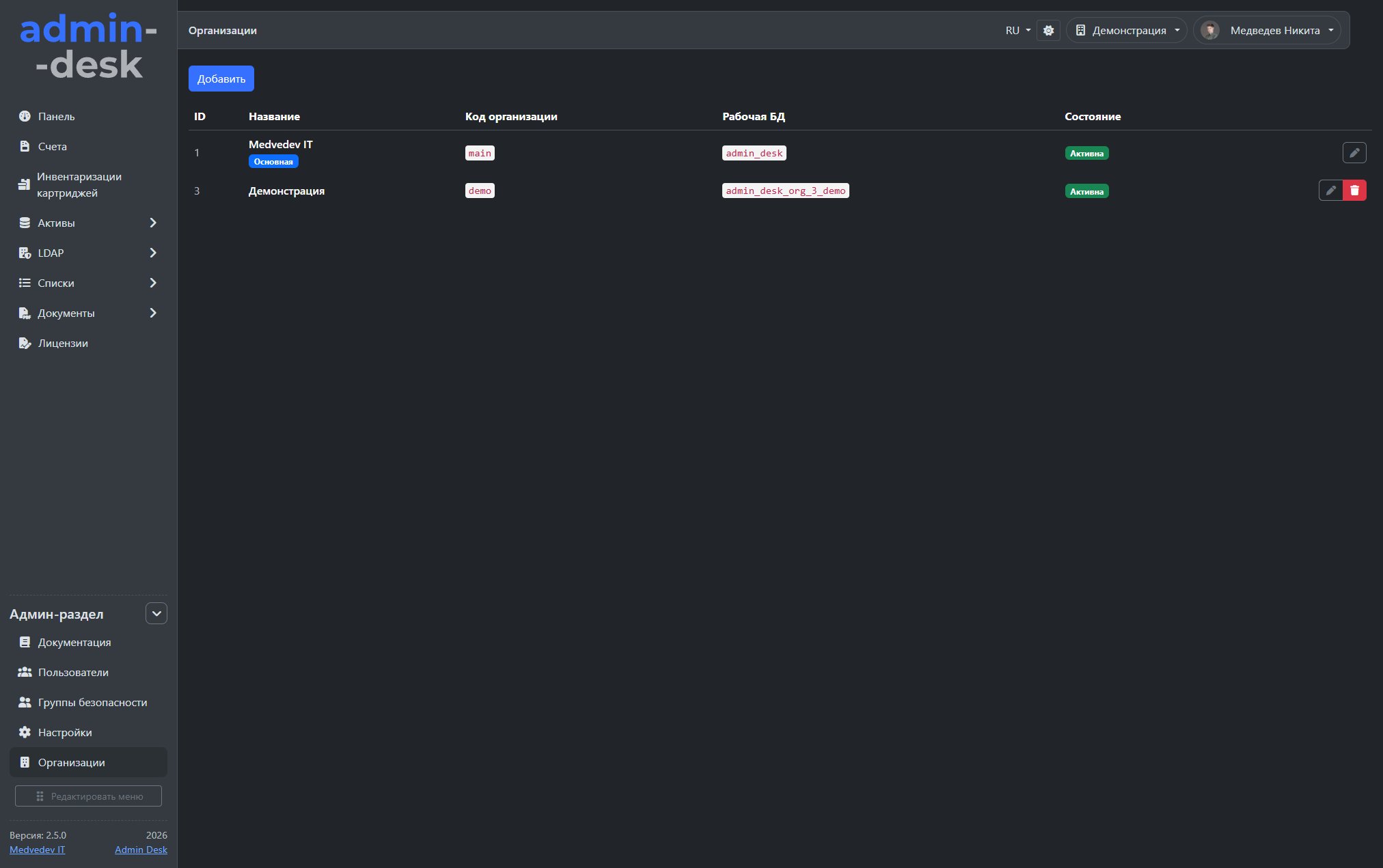
Each organization has a working database with the same structure. Server updates apply schema changes to these databases. Equipment and other operational records are loaded in the selected organization's context.
Users, security groups, system settings and some directories are centralized. Shared manufacturer and type directories, for example, avoid duplicate naming across companies. File storage is also shared, but access is checked against the user and working context.
This is logical separation within one installation, rather than several fully independent servers. It suits a shared IT team that needs common tools and separate operational inventories.
Permissions by organization and branch
The same user can have different security-group assignments in different organizations. They might maintain equipment and handle tickets in one company while having view-only access in another. Their primary organization is selected from their active assignments.
Branches provide separation within an organization. Access can cover a particular branch or all branches. Group and branch assignments can be pinned so login or LDAP synchronization does not automatically change them.
Inheriting settings
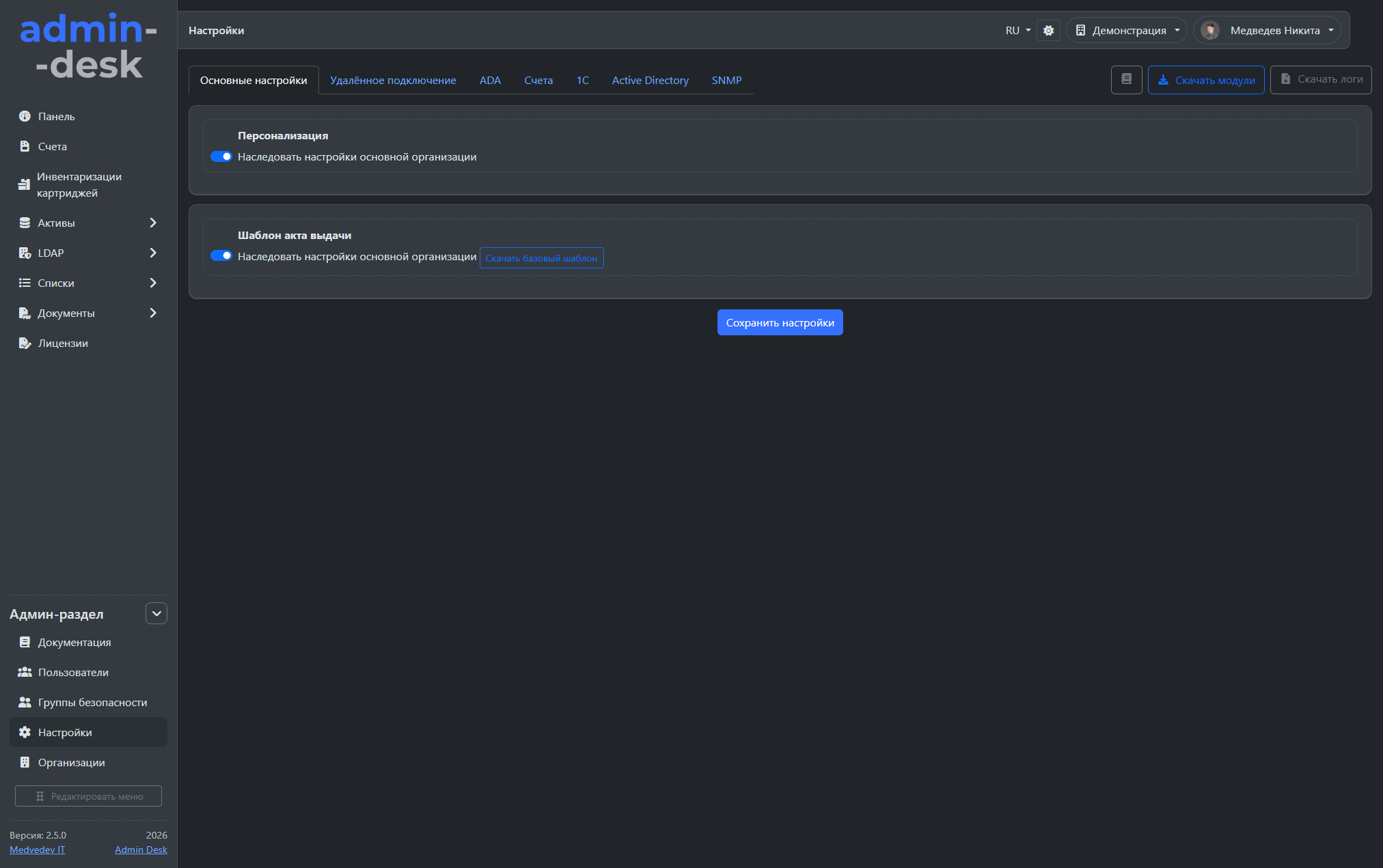
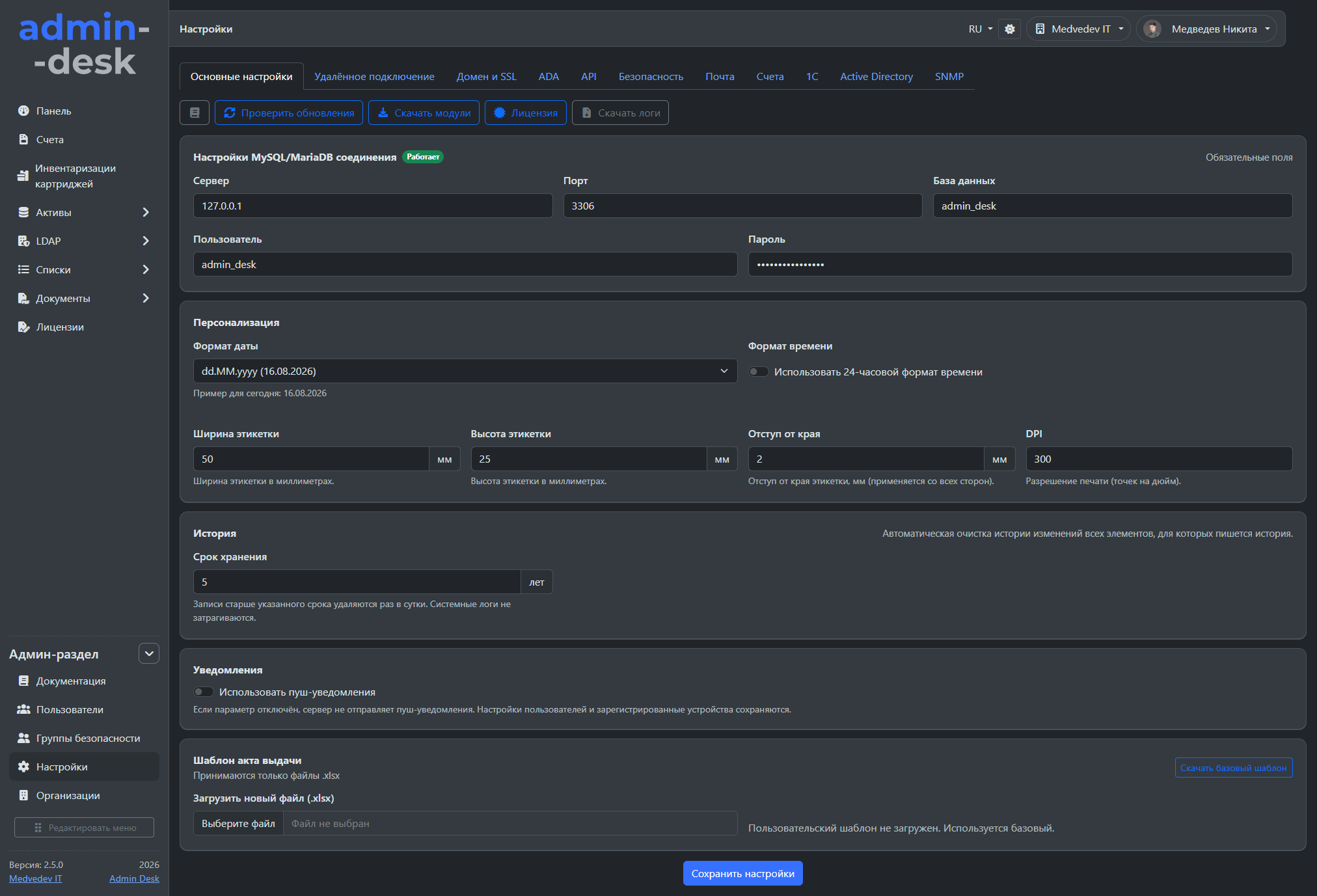
A child organization can inherit supported settings from the primary organization or supply its own values. This keeps shared configuration centralized while allowing differences in integrations, handover templates or directory connections.
When inheritance is enabled, local fields are hidden. Switching to independent settings presents a separate form for the operator to complete. System-wide server and database-connection settings remain under the primary organization.
Agents and moving equipment
An organization code can be configured in the agent installer, GPO or local panel. The server checks for existing PCs before creating records, allowing a device found in another organization to move instead of being duplicated. Pinning the organization prevents automatic reassignment.
Manual movement of supported objects requires confirmation. A PC's installed components move with it, except monitors. An additional option transfers directly related objects and tickets. It does not recursively transfer the entire relationship graph, so the selection should be reviewed when some records must remain with the original company.
Organization-aware integrations
1C and directory settings can differ by organization. For 1C:ZUP, the employee's primary organization determines the HR data source: the shared user account has one personnel number. This avoids two independent ZUP sources repeatedly overwriting the same user's data.
Multi-organization mode requires the corresponding license feature. Without it, Admin Desk operates with the primary organization. Individual module availability and user permissions continue to apply within each working context.
See also employees and 1C:ZUP, ITSM tickets and projects.