Replacing a server, relocating an office or introducing a new system rarely fits into a single support ticket. Admin Desk gives projects a separate workspace with an objective, team, tasks, milestones and shared history, while reusing equipment, document and purchasing records.
An overview of ongoing work
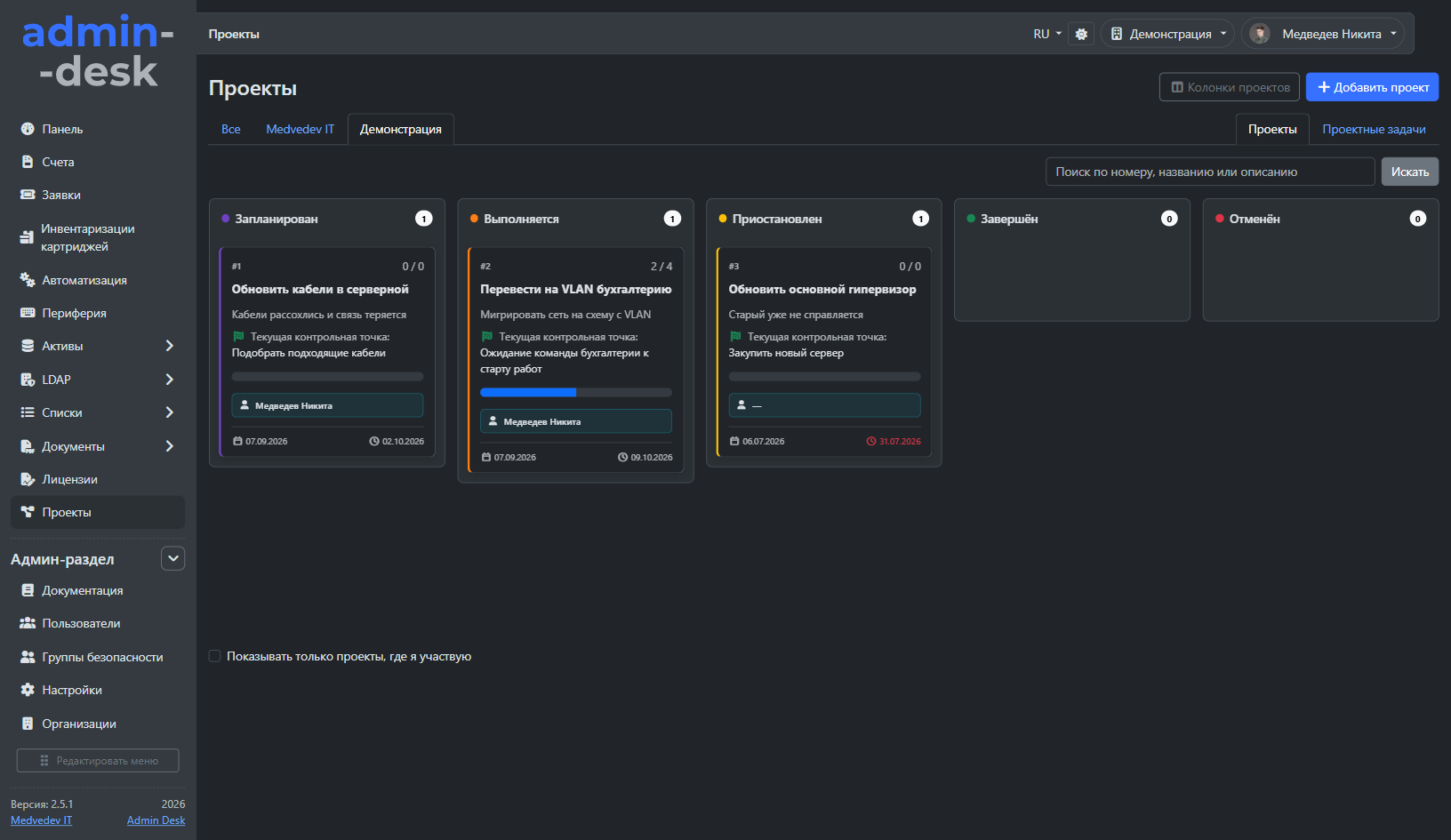
The project list shows planned, active and completed initiatives. State names and colors can be configured. With access to several organizations, users can select one or open the combined All view.
A participation filter focuses the list on relevant projects. The separate Project tasks view brings accessible tasks from different projects onto a common board, identifying their project on each card. Managers can review current work without opening every project individually.
Objectives, people and materials
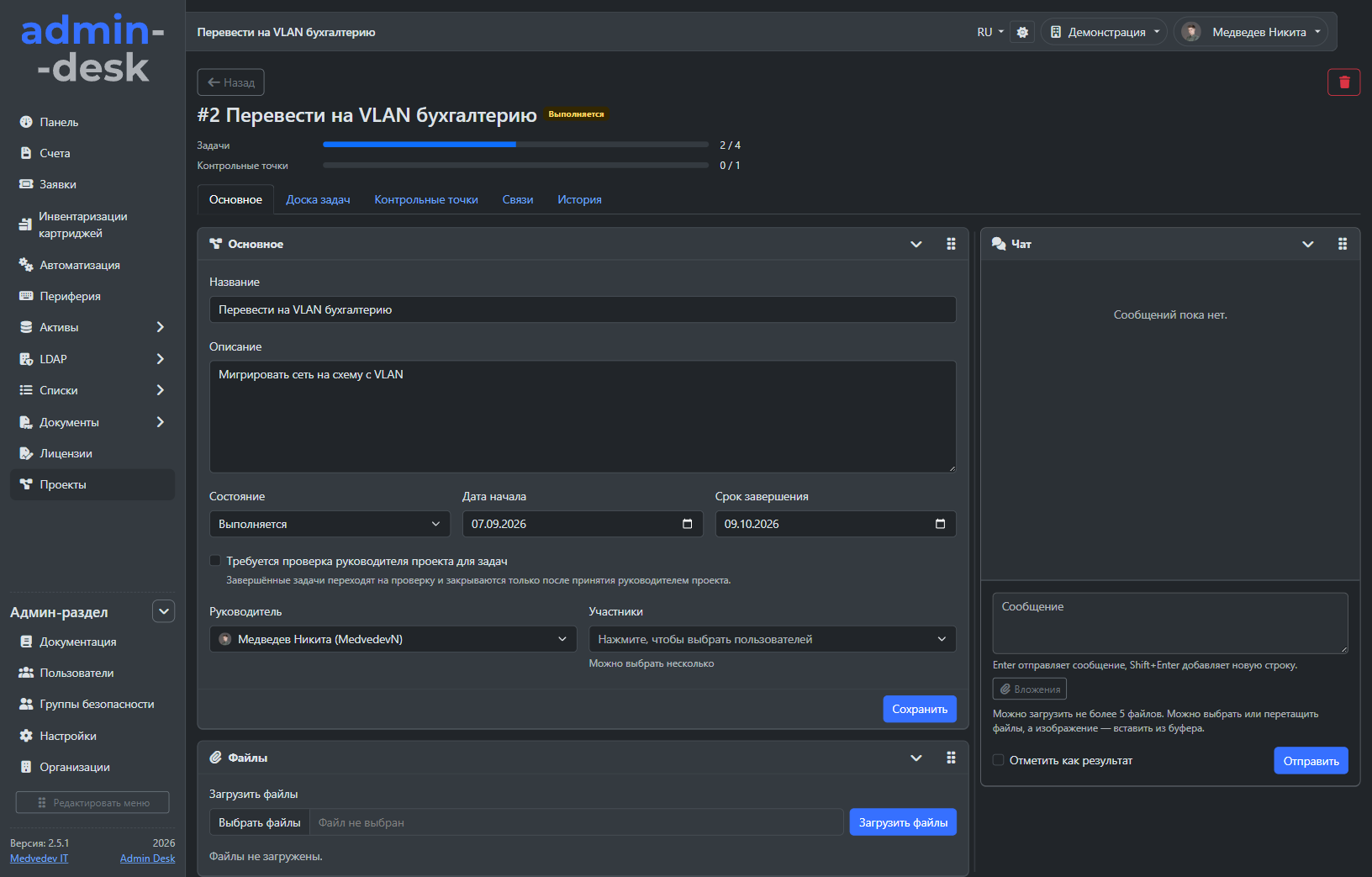
The project record holds its description, dates, manager and participants. Shared chat retains the discussion, while attachments keep diagrams, instructions and agreed files together. Messages support replies, mentions, read indicators and edit history.
The information, files and chat panels can be rearranged and their column widths adjusted. Layout is remembered in the browser. Files are served only after checking project access, so a file link does not replace the user's permissions.
Tasks organized by stages
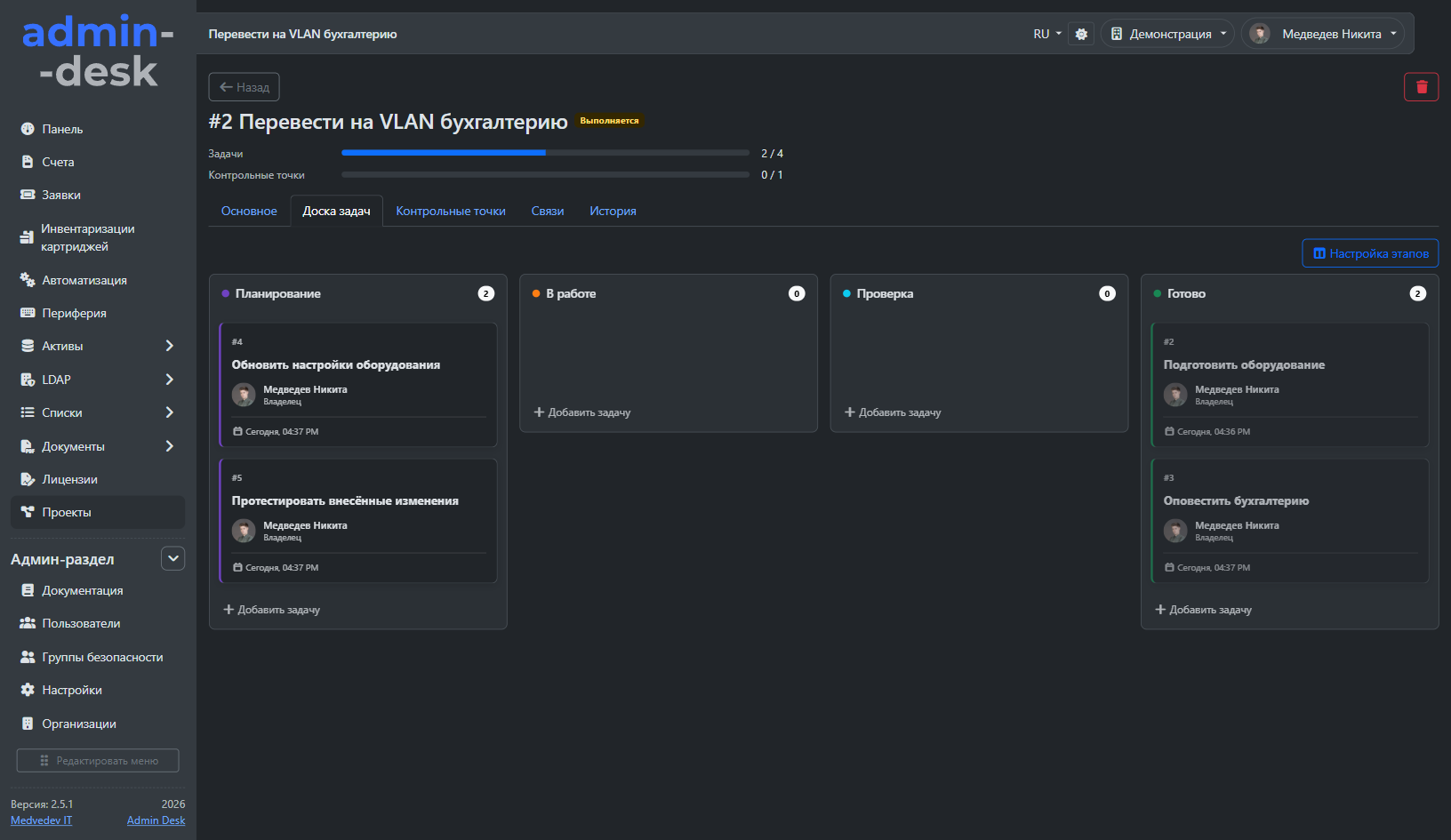
A project task uses ITSM capabilities without filling the general support-ticket queue. It retains an assignee, description, conversation and other work tools, while its project, stage and order define its place in the plan.
Each project has a stage board with configurable order and colors. Built-in stages provide the main route through planning, work, review and completion. Tasks can also be created from the combined project-task board by selecting the project and one of its available stages.
Review before completion
If the manager needs to accept completed work, task verification can be enabled for the project. An attempt to complete a task sends it to the review stage and marks it as awaiting acceptance. The manager receives a notification and accepts the outcome; users with permission to edit the task can also perform acceptance.
This distinguishes an assignee finishing work from the result being checked. For example, configuring backups may be complete, but the task should only be accepted after a successful restore test.
Milestones and dates
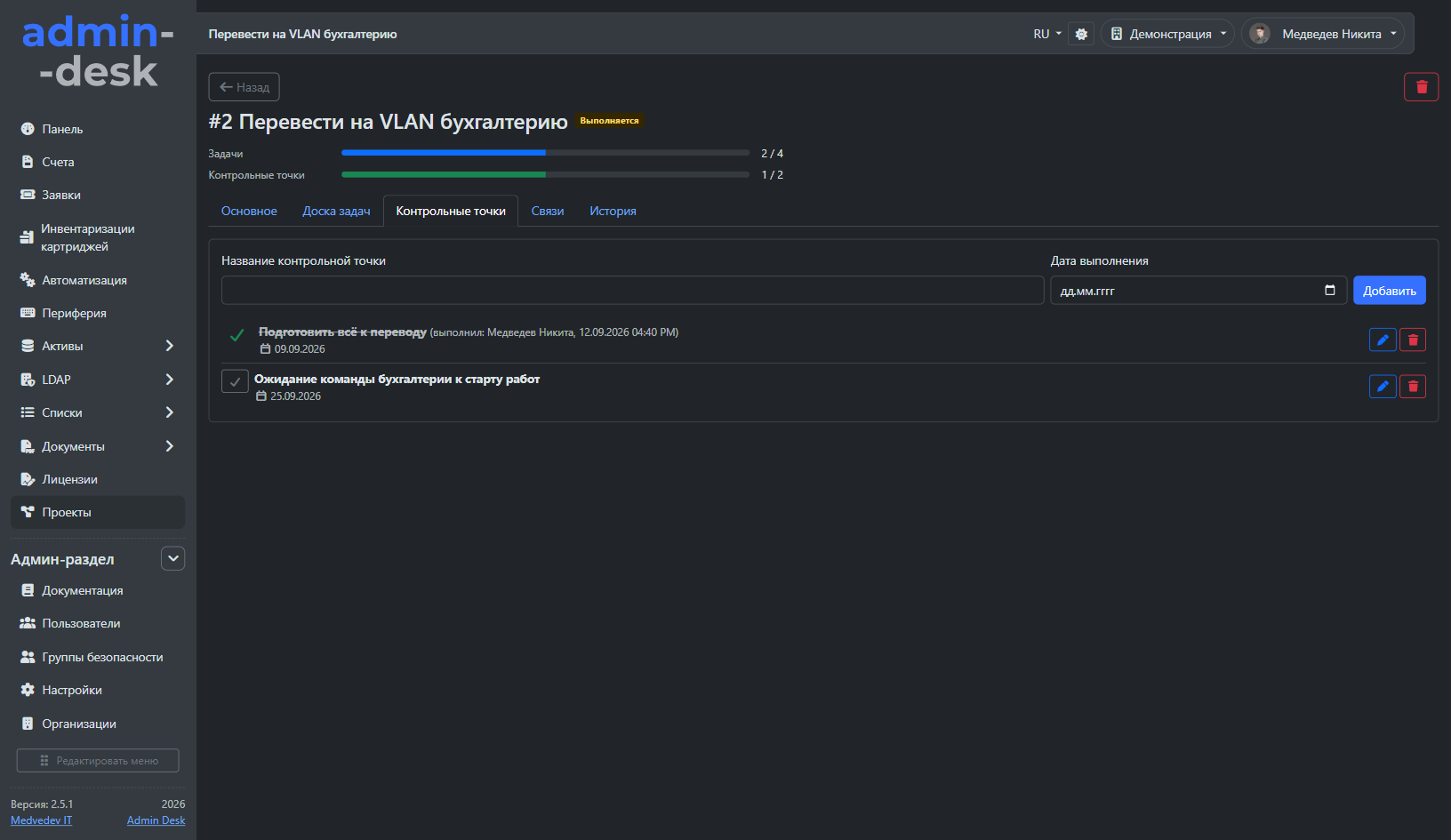
Milestones represent significant results: equipment received, a site prepared, migration completed or documentation handed over. Each milestone has a date, completion state, and the person and time associated with completion.
Task and milestone progress are considered separately. Closing many small tasks should not hide an outstanding critical milestone. The project team can receive notifications when milestones are completed.
Connected assets and purchasing
Projects can be linked to computers, network equipment, printers, components, documents, invoices and tickets. An office-relocation project can therefore keep its equipment list, network purchase and contractor documents alongside its tasks. Access to related records still depends on permissions for their respective sections.
History records changes, while notifications for messages, participation and milestones are configured in user profiles. A participant already reading the open chat does not receive an unnecessary notification for the same message.
A practical workflow
- Define the objective, dates and responsible manager.
- Add participants, tasks and milestones with verifiable outcomes.
- Link the project to equipment, documents and purchases.
- Keep discussions and materials within the project rather than separate private conversations.
- Accept task results, check milestones and complete the project.
Projects are included in the ITSM license feature but have a separate permission category. Restricted access can expose a project to its participants and assignees while managers retain a wider overview.
Related articles: ITSM tickets, organizations and permissions and purchasing.